Deckshare
Your email is only used to sign in and to send password-reset and confirmation links. It’s never shared or used for anything else.
How to use Deckshare
What’s a sticker cube?
Deckshare is a deck manager built for playing Commander with a sticker cube.
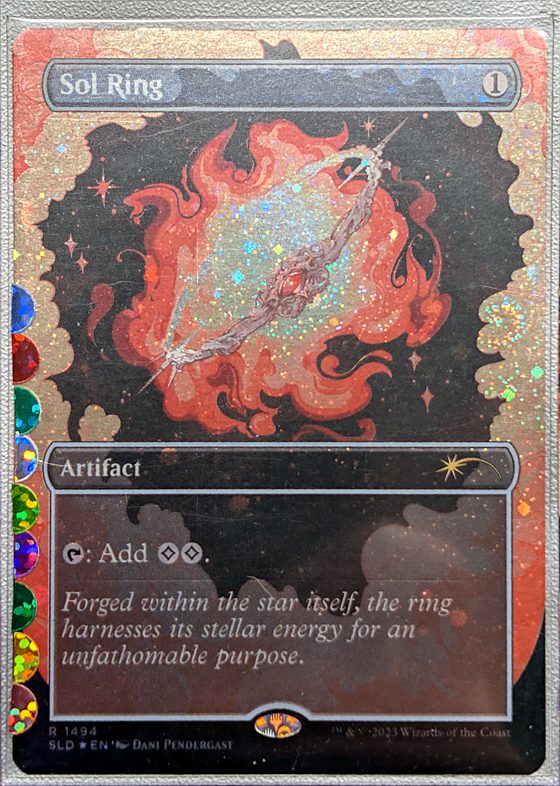
A sticker cube lets you build lots of Commander decks without buying a copy of every card for every deck. You own one copy of each card, and decks share it.
Each deck gets its own sticker color. Every card gets a small sticker on its sleeve for each deck that plays it. To put a deck together, grab every card with that deck’s color.
- Only in one deck: a card just one deck plays has just that deck’s sticker.
- Shared: a card two or more decks play has a sticker for each of them, so any of those decks can use it.
- Basic lands don’t get stickers. They come from a shared pool of basics that every deck draws from.
This site keeps track of which decks play which cards, which print you own, and which stickers to add or peel off when a deck changes.
Sticker cubing was started by DefCat MTG in Say Goodbye to Proxy cards! Lets Sticker Cube! Thanks, DefCat, for the idea this site is built around. Go give the channel a follow.
Getting started
- Sign in, or click Create an account. To look around first, click Try it without an account: a sample account with ten decks that share over a hundred cards, which never saves and starts fresh every time.
- On Decks, click + New deck and pick where the list comes from: Moxfield, Archidekt or another site. Follow the short steps to copy it, paste it in, check the commander and sticker color, and click Create deck (or Sticker checklist first to see which stickers to add).
- Optional: on Collection, import your Moxfield or Archidekt collection so every card shows your exact print.
Everything saves by itself; the top right says Saved. Your decks are on every device you sign in on. The switch at the top right turns on dark mode (light is the default).
Each page starts with a short tip about what it does. Got it hides that one and Turn off tips hides them all; you can bring them back from the bottom of any page.
Your decks
- Decks shows every deck with its commander’s art, sticker color, colors, card count, how many cards it shares with other decks, and its value.
- Click a deck to open it. The top shows its commander, sticker color, card count, shared cards, value and bracket estimate (below), then five tabs:
- Cards: the deck itself (see below).
- EDHREC: what EDHREC players run with this commander, split into cards you already have and ones you’d need. Pick a section like EDHREC’s (Creatures, Instants, Lands…), or narrow it by bracket, price or deck type. Add to deck puts a card straight in.
- Combos: EDHREC’s combos for the commander, split into ones already in the deck, ones you own every piece of, and ones with missing pieces. A combo’s Add to deck button adds the pieces the deck doesn’t have.
- Bulk edit: the whole list as text. Paste a new list or change it, then Save.
- Settings: the deck’s name, sticker color and commander(s). The name follows the commander until you change it. Delete deck is here too.
A deck’s Cards tab
- Drag and drop: drag a card’s picture or link from Scryfall or EDHREC (in another tab or window) onto a deck’s Cards tab. It goes to whatever the menu by the search box says (Main deck, Sideboard or Considering); a Scryfall picture also keeps that exact print, including its language.
- Adding cards: search at the top of the Cards tab (matching cards drop down as you type; click one to add it), pick Main deck, Sideboard or Considering, and press Enter. Sideboard and Considering show under the deck, with → Deck to move a card in; they never count toward the deck or its stickers.
- List (the default) shows the deck in columns, grouped like Moxfield: commander first, then planeswalkers, creatures, sorceries, instants, artifacts, enchantments, battles and lands. Hover a card (or tap it on a phone) to see its picture on the left, with its details underneath: cost, mana value, type, print, price, roles, and which other decks share it. Foil cards shimmer.
- Spoiler shows every card as a full picture.
- By type / By subtype / By tag groups the cards by card type, by subtype (Goblin, Equipment, Aura…), or by their tags: what they do (ramp, card draw, removal, board wipes…). Tags come from Scryfall’s card tags.
- Filters narrows the cards by name, mana value, type, where they are (only in this deck, shared, not in a binder), price, print or tag.
- Advanced adds extra information to each card in List and Spoiler: cost, price, sticker dots, marks, print, tags and where it’s shared. It’s all off by default to keep things clean; the details under the List picture always show everything.
- Deck stats at the bottom: the mana curve, card types, color balance (colored symbols in costs against cards that make each color), and tag counts against typical Commander targets. Land types sorts your lands into dual, fetch, shock, tri lands, Triomes and more. Basic lands suggests how many of each basic fill the deck to 100, and Use this split applies it.
Bracket estimate
The top of each deck estimates its Commander Bracket from Wizards’ rules (1 Exhibition, 2 Core, 3 Upgraded, 4 Optimized, 5 cEDH). Click it to see the cards behind the number:
- Game Changers (Wizards’ official list): none means Bracket 2, 1–3 means Bracket 3, more than 3 means Bracket 4.
- Mass land denial (Armageddon, Winter Orb…): any means Bracket 4.
- Extra turns: two or more means at least Bracket 3.
- Two-card combos, from EDHREC’s combos for the commander, when both pieces are in the deck: at least Bracket 3, and Bracket 4 if one can win early (it can’t tell how early, so that part is up to you).
It’s the lowest bracket the deck could fit. Bracket 1 and cEDH come down to how the deck is built and played, so it never guesses those.
Editing one card in a deck
On a deck’s Cards tab, click any card, in List or Spoiler. A window opens with the card’s English rules text (handy for foreign-language prints), where you can:
- Change print: pick any printing, in any language (Japanese, German…), and set normal, foil or etched.
- Card: choose Altered to mark the card as an alter.
- Binder: put the card in a binder, move it, or take it out of your collection.
- In this deck: change how many copies the deck runs (handy for basic lands), or Remove from deck.
You own one copy of each card, so its print, finish and altered mark show in every deck that uses it. Basic lands are the exception: they come from your shared pool of basics, so each deck just sets how many of each it runs.
Your collection and binders
- Your collection is your binders: every card you own sits in one binder. You start with one called Collection; add more (a trade binder, bulk…) under Binders, where you can also rename or delete them.
- Import takes a Moxfield or Archidekt collection export (CSV) or a pasted list, into the binder you pick.
- Bulk edit a binder shows one binder as text. Add, change or delete lines, or Load a file (a binder you exported from Moxfield, for example), then Save binder.
- Click Edit under a card to change its print or finish, mark it altered, set how many copies you own, move it to another binder, or remove it from your collection.
- If cards in your decks aren’t in any binder, a note at the top says how many. Show me what’s missing lists them, and you can add them one at a time or all at once.
- Taking a card out of your collection doesn’t change your decks: they keep showing its last print.
- Search, filter (in a deck, not in any deck, foils, alters, prints that differ from a list…) and sort by name, value or set.
Pasting lists: Moxfield and Archidekt formats
Moxfield: open the deck, click Export, then copy the text. Archidekt: paste the deck’s link in + New deck, or choose Export from the deck menu and copy the text. Include set codes if you can, so each card shows your exact print.
Both sites’ formats work as they are, for example:
1 Sol Ring (C21) 263 *F* #Ramp(Moxfield)1x Sol Ring (c21) 263 *F* [Ramp] ^Have^(Archidekt)
*F* means foil, *E* etched, and in binders *A* altered. Tags, categories and labels are ignored, and so are sideboard and maybeboard cards. If the export marks the commander, an empty commander box is filled in for you. Alternate names like Final Fantasy’s “Zidane Tribal” are read as the real card (Ragavan, Nimble Pilferer).
Building a new deck, or updating one
- A new deck: + New deck on Decks. Paste the list, then Create deck, or Sticker checklist first to see which cards are new to your decks, which are already shared (add your sticker), and which become shared; tick them off as you go, then Create.
- In-progress decks: Save as in progress in the New deck window keeps a deck you’re still working on. It shows on Decks marked In progress and opens like any deck, but doesn’t count or change any stickers until you finish it: Finish building on its Settings tab, then Run and Create.
- Updating a deck: for big changes (a new theme, a precon upgrade, a full rebuild), click + New deck and choose Update a deck. Pick the deck, then either edit a copy of it here or paste the new list (or an Archidekt link). The new version waits under Decks → In progress for as long as you like: new cards are marked new, and cards you cut wait under Taking out (click one to put it back). Your deck and stickers don’t change until you click Update deck: you get the checklist of what to pull and which stickers to add or peel, then Done makes it the deck. Discard update drops it. Small changes don’t need this: just change the deck.
- Updating a deck: on its Settings tab, click Paste an updated list. You get the same kind of checklist for what to take out and put in, and which stickers to add or peel, before it’s saved. (Bulk edit saves a new list straight away, without the checklist.)
- Basic lands come from your shared pool of basics and don’t get stickers, so the checklist just shows how many to take from the pool or put back.
Shared cards
- Every card across your decks and which decks use it. Click Card or Count to sort.
- Search, pick one deck, or choose Shared (2+ decks) to see every card with more than one sticker. Hide commanders leaves commanders out; Export CSV downloads the table.
- At the bottom: how much sticker cubing saves you, a copy of every card for every deck against one shared copy of each (basic lands left out).
Pictures, prints and prices
- Pictures and prices come from Scryfall. Prices are TCGplayer market prices, updated once a day; click a price to open the card on TCGplayer.
- A card’s print comes from your binders first, then the last print you chose, then the set code in your deck lists. If a deck list names a different print, the card says so, with Use that print.
- Hover over a card name to see its picture; on a phone, tap the name, then tap again to close it.
- Card pictures load in the background and are remembered on your device, so they appear instantly next time. Until a picture arrives, the card shows as a blank with its name.
Your account and backups
- Your decks and collection are private to your account. You stay signed in on a device for 30 days; Sign out is at the top.
- Change password at the top sets a new one and signs out your other devices. Forgot it? If the sign-in form shows Forgot password?, use that; otherwise ask the site owner, who can reset it.
- Offline: once you’ve opened the site on a device, it opens there without a connection too, showing your decks as of your last visit (and card pictures you’ve seen). Changes you make offline are kept on the device and saved to your account when you’re back online; the top right says Offline meanwhile. EDHREC, prices and new pictures need a connection.
- At the bottom of Decks, download a copy saves a backup file of your decks and collection, and restore from a file brings one back, replacing what’s there.
Nothing in progress. In + New deck, click Save as in progress to keep a deck here until it’s ready. It won’t count toward shared cards or stickers until you finish it.
Results
In progress
Everyone with an account, newest activity first, and the recent sign-in history. Only admins see this tab.
Accounts
Sign-in history
Changelog
Every change to Deckshare, newest first, one card per day.