Sticker Cube
Your email is only used to sign in and to send password-reset and confirmation links. It’s never shared or used for anything else.
How to use Sticker Cube
What’s a sticker cube?
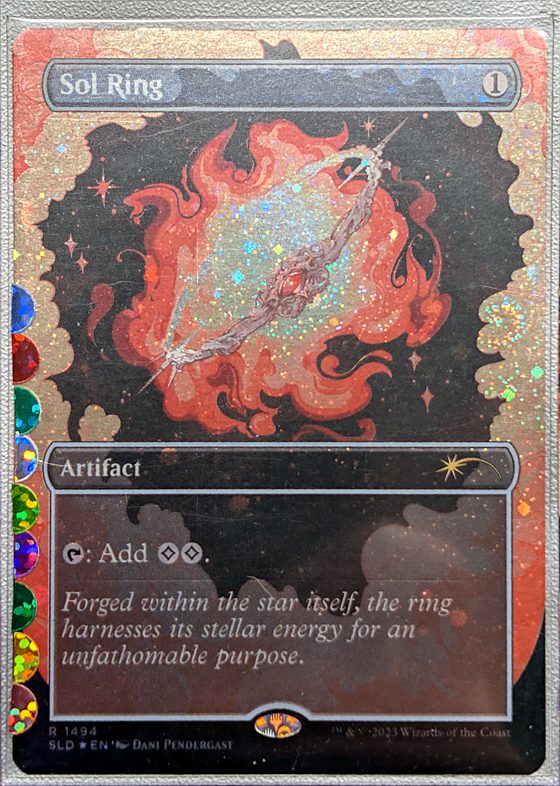
A sticker cube lets you build lots of Commander decks without buying a copy of every card for every deck. You own one copy of each card, and decks share it.
Each deck gets its own sticker color. Every card gets a small sticker on its sleeve for each deck that plays it. To put a deck together, grab every card with that deck’s color.
- Only in one deck: a card just one deck plays has just that deck’s sticker.
- Shared: a card two or more decks play has a sticker for each of them, so any of those decks can use it.
- Basic lands are never shared. Each deck keeps its own.
This site keeps track of which decks play which cards, so you know what goes where and which stickers to add or peel off when a deck changes.
Getting started
- Sign in above, or click Create an account. To look around first, click Try it without an account.
- On Decks, click + New deck and type its commander. The deck is named after the commander unless you rename it.
- Paste the deck’s card list into the big box (see below for how to copy it from Moxfield or Archidekt).
- Click the colored dot next to the deck’s name to match it to your sticker color.
- Optional: on Collection, import your Moxfield or Archidekt collection so every card shows your exact print.
Everything saves on its own. The status at the top says Saved once it’s done, and your decks show up on any device.
The switch at the top right flips between light and dark. Until you use it, the site follows your device’s setting.
Copying a deck list from Moxfield or Archidekt
Moxfield: open the deck, click Export, then Copy plain text.
Archidekt: open the deck, choose Export from the deck menu, pick plain text and copy it.
Paste it straight in. Set codes, foil marks and Archidekt categories are ignored, so 1x Sol Ring (c21) 263 [Ramp] is read as 1 Sol Ring.
Decks: all your decks at a glance
- Each tile shows the commander’s art, the deck’s sticker color and colors, how many cards it has, how many are shared with other decks, and its value.
- Click a deck to open it. + New deck starts an empty one.
A deck’s page: cards, editing, ideas and combos
- The top shows the deck’s totals: cards only in this deck, cards shared with other decks, basic lands, and value.
- Cards shows the deck grouped by type, with your print of each card, foil and altered marks, its price, and whether it’s only in this deck or shared (with the other decks’ stickers). Pictures and List switch the layout; in the list, hover a name to see the card.
- If the deck’s list names a different print than your collection, the card says so. Use that print makes the list’s print your collection’s.
- Bulk edit shows the whole list as text, with your prints. Paste a Moxfield or Archidekt export (sideboard and maybeboard cards are left out) or edit it, then Save.
- Settings changes the name, sticker color and commander(s). Paste an updated list gives you a pull list of what to take out and put in before saving. Delete deck is there too.
- Ideas shows what EDHREC players run with this commander, split into cards in your other decks and ones you don’t have, with bracket, price and deck type filters.
- Combos shows EDHREC’s combos for the commander: ones already in the deck, ones you own every piece of, and ones with missing pieces.
Collection: your binders and exact prints
- Your collection is your binders: every card you own sits in one binder. You start with one called Collection; add more (a trade binder, bulk…) under Binders.
- Import takes a Moxfield or Archidekt collection export (CSV) or a pasted list, into the binder you pick.
- Bulk edit a binder shows that binder as text, Moxfield/Archidekt style (
1 Sol Ring (LTC) 345 *F*, plus*A*for altered). Add, change or delete lines, then Save binder. Deleting a card takes it out of your collection; decks that use it keep showing its last print. - You own one copy of each card, so its print shows in every deck that uses it. Change print shows every printing (and foil or etched); Altered marks an alter; the binder menu on a card moves it.
- If cards in your decks aren’t in a binder, a note at the top offers to add them all to a binder.
- Prices are TCGplayer market prices through Scryfall, updated once a day. Click a price to open the card on TCGplayer.
Shared cards: which decks share each card
- Lists every card and which decks play it. Click Card or Count to sort.
- Use the search box, the deck dropdown and the filter to narrow it down. Shared (2+ decks) shows every card with more than one sticker.
- Tick Hide commanders to leave commanders out. Export CSV downloads the table.
Build new deck: put a new deck together
- Name the deck, paste its list and click Run.
- You get a checklist of where to find each card: New cards come from your collection, some are already shared and just need your sticker, and some are in one other deck and become shared.
- Tick cards off as you collect them and add the stickers, then click Create. The new deck opens so you can set its commander.
Card pictures
Hover over a card name, for example in the Shared cards table or a deck’s List view, to see its picture. On a phone, tap the name, then tap again to close it. Pictures and prices come from Scryfall.
Your account and backups
- Click Create an account on the sign-in form and enter your name, email and a password. We’ll email you a link to confirm your address. Your decks are private to your account.
- You stay signed in on that device for 30 days. Sign out is at the top.
- Change password at the top sets a new one and signs out your other devices.
- Forgot your password? Click Forgot password? on the sign-in form and we’ll email you a link to pick a new one.
- At the bottom of the Overlap tab, download a copy saves a backup file of your decks, and restore from a file brings one back, replacing what’s there.
Every card you own, sorted into binders, with the exact print you have. Your print shows in every deck that uses the card.
Binders
Your collection is your binders: every card you own is in one binder. Move a card with the binder menu on it, or in bulk edit. Deleting a binder takes its cards out of your collection (decks keep showing their prints).
Bulk edit
Every card in this binder, one per line, in Moxfield or Archidekt format: 1 Sol Ring (LTC) 345 *F*. *F* foil, *E* etched, *A* altered. Leave out the set code to keep the print you already have.
Add a line to add a card (a card in another binder moves here). Delete a line to take the card out of your collection; decks that use it keep showing its last print.
Import your collection
Moxfield: Collection → More → Export (CSV). Archidekt: Collection → Export (CSV). Or paste a list like 1 Sol Ring (C21) 263 *F*.
Choose the file or paste it below. New cards go into the binder you pick; cards already in a binder stay where they are, with their print and count updated.
Every card across your decks and which decks use it. A card in two or more decks is shared, with one sticker per deck.
Results
What EDHREC players run with this commander, split into cards already in your other decks and popular cards you don’t have yet. Use the filters to narrow it by bracket, price or deck type.
The combos EDHREC players run with this commander, and which pieces you already have.
Everyone with an account, newest activity first, and the recent sign-in history. Only admins see this tab.